 English
English
English
 አማርኛ
Amharic
አማርኛ
Amharic
 العربية
Arabic
العربية
Arabic
 Български
Bulgarian
Български
Bulgarian
 Català
Catalan
Català
Catalan
 中文
Chinese (Simplified)
中文
Chinese (Simplified)
 Hrvatski
Croatian
Hrvatski
Croatian
 Čeština
Czech
Čeština
Czech
 Dansk
Danish
Dansk
Danish
 Nederlands
Dutch
Nederlands
Dutch
 Eesti
Estonian
Eesti
Estonian
 Filipino
Filipino
Filipino
 Suomi
Finnish
Suomi
Finnish
 Français
French
Français
French
 Deutsch
German
Deutsch
German
 Ελληνικά
Greek
Ελληνικά
Greek
 עברית
Hebrew
עברית
Hebrew
 Magyar
Hungarian
Magyar
Hungarian
 Bahasa Indonesia
Indonesian
Bahasa Indonesia
Indonesian
 Italiano
Italian
Italiano
Italian
 日本語
Japanese
日本語
Japanese
 한국어
Korean
한국어
Korean
 Latviešu
Latvian
Latviešu
Latvian
 Lietuvių
Lithuanian
Lietuvių
Lithuanian
 Bahasa Melayu
Malay
Bahasa Melayu
Malay
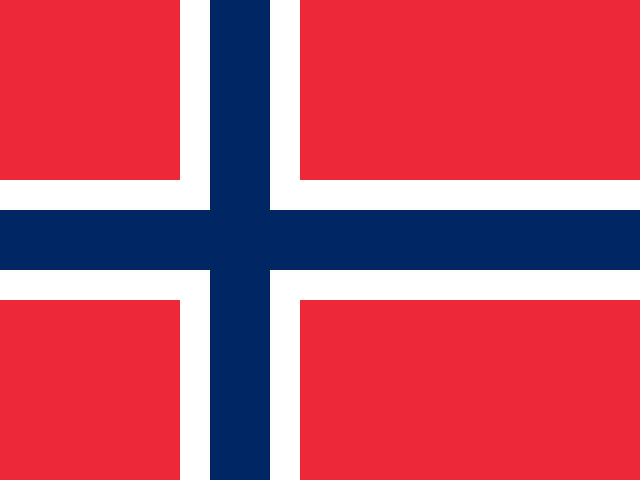 Norsk
Norwegian
Norsk
Norwegian
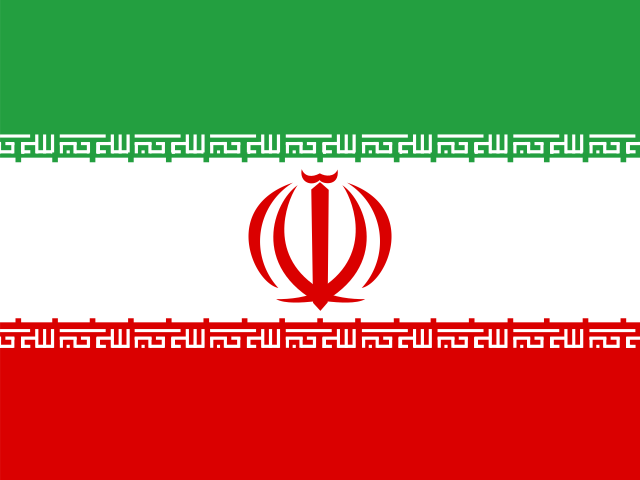 فارسی
Persian
فارسی
Persian
 Polski
Polish
Polski
Polish
 Português
Portuguese
Português
Portuguese
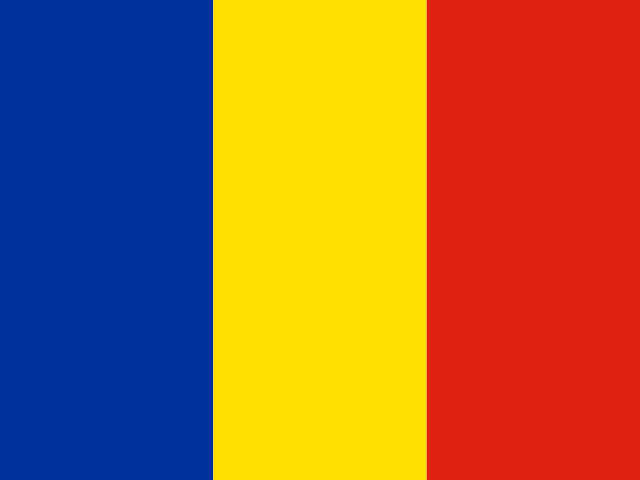 Română
Romanian
Română
Romanian
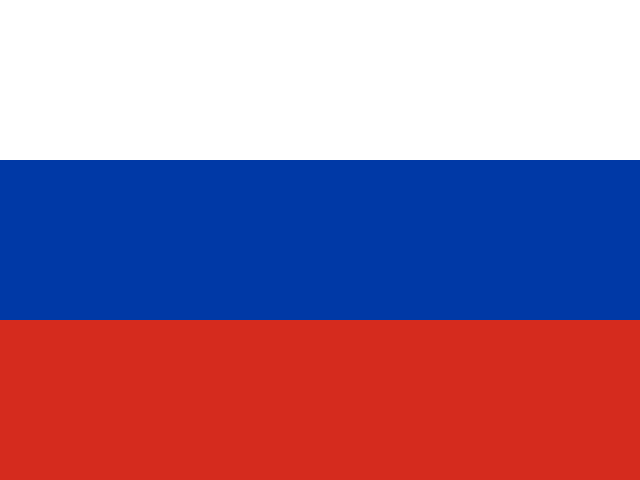 Русский
Russian
Русский
Russian
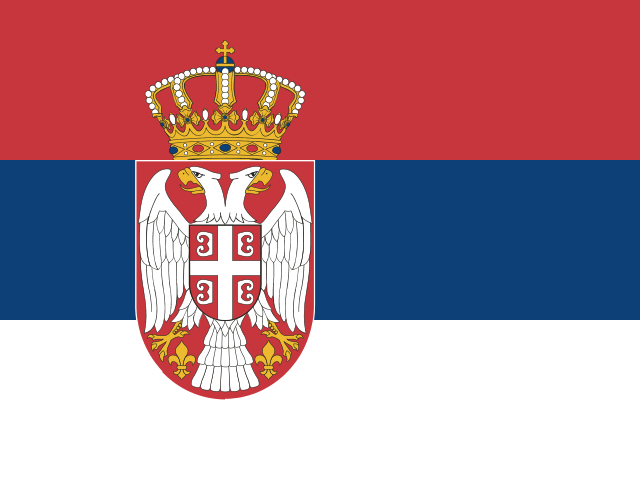 Српски
Serbian
Српски
Serbian
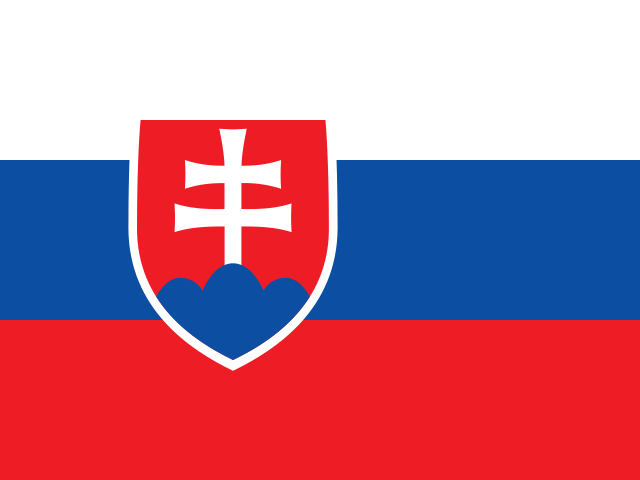 Slovenčina
Slovak
Slovenčina
Slovak
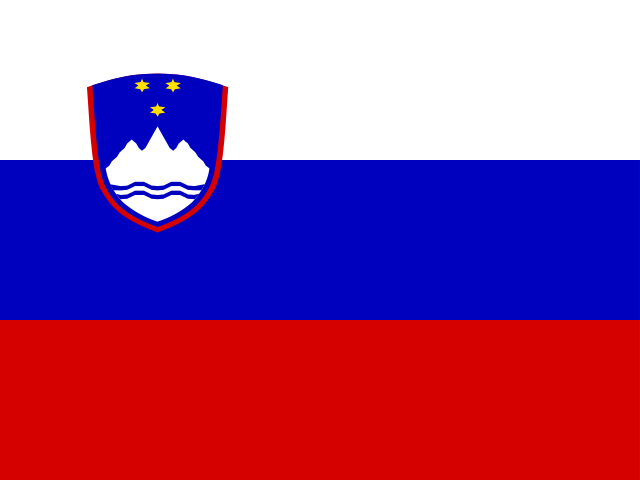 Slovenščina
Slovenian
Español
Spanish
Slovenščina
Slovenian
Español
Spanish
 Kiswahili
Swahili
Kiswahili
Swahili
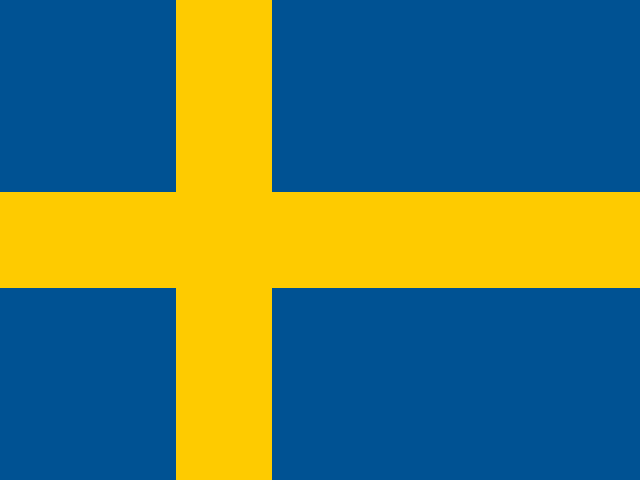 Svenska
Swedish
Svenska
Swedish
 ไทย
Thai
ไทย
Thai
 Türkçe
Turkish
Türkçe
Turkish
 Українська
Ukrainian
Українська
Ukrainian
 Tiếng Việt
Vietnamese
Tiếng Việt
Vietnamese
No languages match